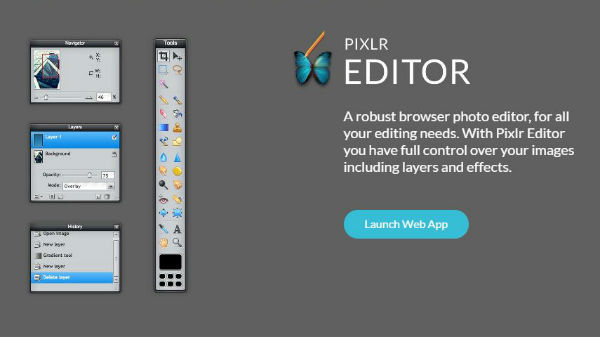
Photopea is a free browser-based photo editor that opens PSD, XCF, Sketch, and many other design files without installing anything. In 2026, it remains one of the most capable free Photoshop alternatives available for Windows users.

What is Photopea?
Photopea is a web-based image editor created by Ivan Kutskir and launched in 2013. It runs entirely in your browser, no download required, and supports layers, masks, adjustment layers, filters, and most of the tools you’d find in Adobe Photoshop. What sets it apart from other free editors is its file format support: it can open and save PSD files natively, which means you can use it to edit files created in Photoshop and hand them off to others using paid software without losing any layer data. It’s free to use with ads, or ad-free with a premium subscription.
Can you use Photopea on PC without downloading?
Yes, that’s the point. Go to photopea.com in any modern browser (Chrome, Edge, Firefox) and it opens immediately. No installation, no account required. Your files stay on your local computer; nothing is uploaded to a server unless you explicitly use a cloud import feature. You can also install it as a Progressive Web App (PWA) through Chrome or Edge, which puts a Photopea shortcut on your desktop that opens in its own window, similar to a desktop app.
How to download and install Photopea on Windows
Option 1: Use it directly in your browser (no install needed)
- Open Chrome, Edge, or Firefox on your Windows PC.
- Go to photopea.com.
- The editor loads in about 5-10 seconds on a decent connection.
- To open a file, go to File > Open, or drag and drop an image directly onto the editor.
- Work on your file and save via File > Save (downloads the file in Photopea’s native format) or File > Export As to save as JPEG, PNG, PDF, and other formats.
Option 2: Install as a PWA (desktop app experience)
- Open photopea.com in Google Chrome or Microsoft Edge.
- In Chrome: click the three dots in the top right > “Save and share” > “Install page as app.” In Edge: click the three dots > “Apps” > “Install this site as an app.”
- Click “Install” in the popup. Photopea will open in its own window without browser tabs or the URL bar.
- A Photopea shortcut appears on your desktop and Start menu, usable like any other app.
- You still need an internet connection to use it, as the app runs from the web, but it loads quickly from cached files on repeat opens.
Key features
- PSD file support: Opens, edits, and saves Photoshop PSD files with layer structure, smart objects, and adjustment layers intact. This is rare among free editors.
- Layers and masks: Full layer panel with blending modes, opacity, clipping masks, and vector masks. Workflow is close to Photoshop’s layer system.
- Pen tool and vector editing: Create and edit vector shapes and paths, similar to Photoshop’s pen tool. Useful for cutting out subjects or creating illustrations.
- Filters and adjustments: Curves, Levels, Hue/Saturation, Color Balance, and more, plus filters like Gaussian Blur, Unsharp Mask, and Liquify.
- Multi-format support: Opens XCF (GIMP), Sketch, AI (Illustrator), WEBP, RAW (limited), SVG, and most common image formats alongside PSD.
- Keyboard shortcuts: Most Photoshop keyboard shortcuts work the same way in Photopea, so experienced Photoshop users don’t need to relearn the interface.
System requirements
| Component | Minimum | Recommended |
|---|---|---|
| Browser | Chrome 70+, Firefox 65+, Edge 79+ | Latest Chrome or Edge |
| OS | Any OS that runs a modern browser | Windows 10/11 |
| RAM | 2 GB (for the browser) | 8 GB for large PSD files |
| Internet | Required for initial load | 5 Mbps+ for fast loading |
| GPU | Basic integrated graphics | Dedicated GPU for filters and effects |
Common issues and fixes
Photopea runs slowly on large files
Photopea uses your browser’s memory and your CPU/GPU for rendering. Close other browser tabs and applications while working on large PSDs. Using Chrome or Edge tends to perform better than Firefox for heavy graphic work in Photopea. If you’re consistently hitting performance issues, try using the PWA version, which gets more dedicated memory than a browser tab.
File won’t open or shows corrupt
Drag and drop the file directly onto the Photopea interface instead of using File > Open. If the file is very large (over 200MB), it may take a minute to process. Some highly complex PSDs with linked smart objects may not open correctly, open the file in Photoshop first, flatten any problematic layers, and save a copy for use in Photopea.
Keyboard shortcuts not working
Some browser-level shortcuts (like Ctrl+W to close a tab) override Photopea shortcuts. Use the PWA version to avoid this, it runs in its own window and captures keyboard input without conflicts from the browser.
Export quality looks lower than expected
When exporting JPEG, Photopea defaults to a quality setting of 80. Go to File > Export As > JPEG and manually set quality to 90-95 for higher-quality exports. For print work, export as TIFF or save as PSD rather than JPEG.
Alternatives to Photopea for PC
GIMP is the main free desktop alternative. It’s a native Windows app with no browser dependency, better performance on large files, and a large plugin ecosystem, but it doesn’t open PSD files as cleanly as Photopea. Canva is simpler and web-based like Photopea, but it’s aimed at quick social graphics rather than serious photo editing. Krita is worth looking at if you do digital painting or illustration, it has better brush tools than Photopea but weaker photo editing features. For video editing that also involves graphic work, CapCut for PC handles basic compositing alongside its timeline editor.
FAQ
Is Photopea really free?
Yes. The free version is fully functional with ads shown in the sidebar. A premium subscription removes ads and adds some extra features like increased cloud storage and faster loading. The free version has no feature restrictions, the paid plan is just for an ad-free experience.
Does Photopea work offline?
Partially. After your first visit, Photopea caches some assets in the browser. The app may partially load offline, but full functionality requires an internet connection. It’s not reliable as an offline tool.
Can Photopea open RAW camera files?
Limited support. Photopea can open some RAW formats but the processing isn’t as accurate as dedicated RAW editors like Lightroom or Darktable. For professional RAW editing, use a dedicated tool and import the processed file into Photopea for further work.
Is Photopea safe to use?
Yes. Files you edit in Photopea stay in your browser and on your local disk, they are not uploaded to Photopea’s servers during normal editing. The service has been running since 2013 without reported data incidents.
Does Photopea support CMYK color mode?
Yes. Photopea supports CMYK color mode, which is needed for print work. You can convert between RGB and CMYK via Image > Mode. Note that the browser screen renders in RGB, so CMYK colors may look slightly different on screen than in print.
Can I use Photopea on a Chromebook?
Yes. Since it runs in a browser, Photopea works on Chromebooks, tablets, and any device with a modern browser, not just Windows PCs.
Photopea covers most Photoshop use cases for free, and the PWA install makes it feel close enough to a desktop app for daily use. For other creative tools that run on Windows, see our guides on CapCut for PC and KineMaster for PC for video editing, and TikTok for PC if you’re creating content for social platforms.