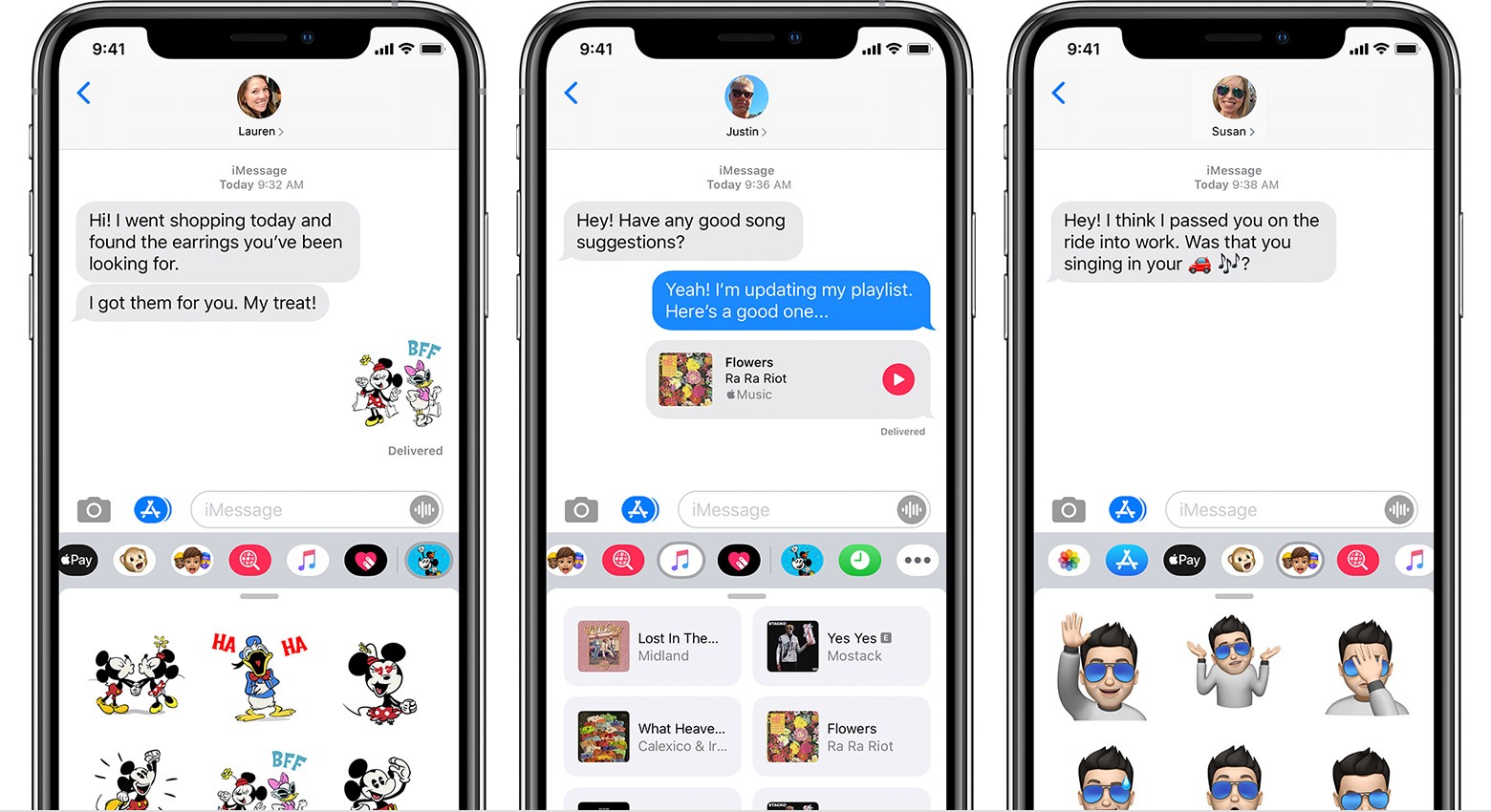
iMessage doesn’t officially run on Windows, but there are real ways to access it from your PC in 2026, whether through Apple’s own tools or third-party workarounds that actually hold up in practice.

What is iMessage?
iMessage is Apple’s built-in messaging service for iPhone, iPad, and Mac. It sends texts, photos, videos, and files over the internet using your Apple ID, instead of standard SMS. Messages appear in blue bubbles (green means SMS), and you get features like read receipts, reactions, and end-to-end encryption. The service is free to use with Wi-Fi or mobile data and has been baked into Apple devices since 2011.
Can you use iMessage on PC?
Apple does not make an official iMessage app for Windows. There is no standalone client you can download from Microsoft Store or Apple’s website. That said, there are two workable options: Apple’s Phone Mirror (via iPhone Mirroring on macOS Sequoia or iPhone Mirroring on Windows via certain setups), and third-party apps that mirror your iPhone screen to your PC. For most users, the most reliable method in 2026 is using Apple’s iPhone Mirroring feature, if your iPhone is nearby and on the same Wi-Fi network.
How to use iMessage on Windows 10/11
Option 1: iPhone Mirroring via Apple Devices app (Windows)
- Make sure your iPhone is running iOS 18 or later.
- Download Apple Devices from the Microsoft Store on your Windows 10/11 PC.
- Open the app and sign in with your Apple ID.
- Keep your iPhone nearby and unlocked on the same Wi-Fi network.
- Select your iPhone from the device list, your iPhone screen will appear on your PC.
- Open Messages on the mirrored screen and use iMessage as normal via mouse and keyboard.
Option 2: Using a Mac and Remote Desktop
- If you own a Mac, enable iMessage on your Mac by going to Messages > Preferences > iMessage and signing in with your Apple ID.
- On your Windows PC, download Microsoft Remote Desktop from the Microsoft Store.
- Set up Remote Desktop on your Mac (System Settings > Sharing > Remote Management).
- Connect to your Mac from your Windows PC using its local IP address.
- Open the Messages app on your Mac remotely and send/receive iMessages from your PC.
Option 3: Use an Android emulator with a workaround
This approach doesn’t give you true iMessage, Android can’t access it. However, if your iPhone has iMessage forwarding set up (Settings > Messages > Text Message Forwarding), SMS messages will forward to other Apple devices. There is no direct emulator path to iMessage on Windows; avoid apps claiming otherwise, as they are usually scams or data collectors.
Key features
- End-to-end encryption: Messages are encrypted between Apple devices so only sender and recipient can read them.
- Read receipts: You can see when the other person has read your message, and disable this for yourself in Settings.
- Reactions and Tapbacks: Respond to messages with a thumbs up, heart, or other quick reactions without sending a full reply.
- File and photo sharing: Send high-res photos, videos, and documents without compression (unlike SMS).
- Group messaging: Named group chats with mention notifications, shared photos, and link previews.
- SMS fallback: If the recipient doesn’t have an iPhone, iMessage falls back to standard SMS automatically.
System requirements
| Component | Minimum | Recommended |
|---|---|---|
| OS | Windows 10 (64-bit) | Windows 11 |
| iPhone | iOS 17 | iOS 18 or later |
| Network | Same Wi-Fi network | 5 GHz Wi-Fi for low latency |
| Apple Devices app | Version 1.0+ | Latest version from MS Store |
| RAM | 4 GB | 8 GB |
Common issues and fixes
iPhone not showing up in Apple Devices app
Make sure your iPhone and PC are on the same Wi-Fi network. Bluetooth should also be enabled on both devices. Restart the Apple Devices app and check that your iPhone is unlocked during the initial pairing. If it still doesn’t appear, sign out of your Apple ID in the app and sign back in.
Screen mirroring is laggy or freezes
Lag usually comes from Wi-Fi congestion. Switch to a 5 GHz band if your router supports it, and move your devices closer together. Closing background apps on your iPhone can also help with frame drops during mirroring.
Messages not syncing across devices
If messages appear on iPhone but not on the mirrored view, toggle iMessage off and back on in Settings > Messages on your iPhone. Also confirm that you’re signed in with the same Apple ID across all devices.
Apple Devices app not available in your region
The app’s availability varies by country in the Microsoft Store. Try changing your Store region to United States in Windows settings, download the app, then switch back. You may need to log out of the Microsoft Store before changing region.
Alternatives to iMessage for PC
If you mainly use iMessage for group chats or media sharing, WhatsApp has a solid Windows desktop app and handles photos and video well. It’s cross-platform, so Android users can join without workarounds. Telegram is worth considering if you need larger file transfers or want to organize chats into topics, it syncs instantly across PC, phone, and browser with no phone connection required. Signal is the better choice if privacy is your main concern; its Windows app is native and receives regular security updates. If you’re in a team environment, Slack or Microsoft Teams handles group communication better than any mobile messaging app.
FAQ
Is there an official iMessage app for Windows?
No. Apple has never released a standalone iMessage client for Windows. The closest official method is using the Apple Devices app to mirror your iPhone to your PC.
Can I use iMessage on PC without an iPhone?
Not practically. iMessage requires an Apple device tied to your Apple ID. Without an iPhone or Mac nearby, you have no way to access it on Windows.
Does iPhone Mirroring work with iMessage?
Yes. Once your iPhone is mirrored through the Apple Devices app, you can open Messages and use iMessage normally, including sending and receiving messages in real time.
Are third-party iMessage apps for Windows safe?
Most are not. Apps claiming to give you iMessage on Windows without an Apple device are either scams or require you to hand over your Apple ID credentials, which is a major security risk. Avoid them.
Can I send iMessages from a Windows browser?
Not through any official Apple service. There’s no iCloud web interface for iMessage. Some third-party services have claimed to offer this, but none are sanctioned by Apple and most have shut down.
What happens if the other person doesn’t have an iPhone?
iMessage automatically falls back to SMS (green bubble) when sending to a non-Apple device. This happens without any action on your end, though SMS doesn’t have the same encryption or feature set as iMessage.
If you spend time on Windows and need your iPhone messages accessible, the Apple Devices app is the most reliable path right now. It’s not perfect, but it works without third-party risk. For Android-based workflows on PC, check out our guides on the best Android emulators for PC and BlueStacks for Windows 11. If you’re setting up a full productivity workspace, our CapCut for PC guide covers another popular iOS-first app that now runs natively on Windows.